You’ve completed your Google Merchant Center setup, uploaded your products, and waited for Google to process your feed. Everything appears ready. Then you open Google Ads to create your first Shopping campaign, only to discover that your products aren’t available.
This is one of the most common roadblocks ecommerce businesses face.
The missing step is linking your Google Merchant Center account to Google Ads.
Merchant Center stores and manages your product information, while Google Ads uses that information to deliver Shopping Ads and retail Performance Max campaigns. Although both platforms are part of Google’s advertising ecosystem, they operate independently until you connect them.
Without this connection, Google Ads cannot access your approved product feed, which means you cannot run Shopping campaigns or product-based Performance Max campaigns.
Yes, linking Google Merchant Center to Google Ads is required before you can use Merchant Center product data in Shopping campaigns and retail Performance Max campaigns. The connection allows Google Ads to access approved products, synchronize inventory, and create product-based advertising campaigns.
Over the years, I’ve seen businesses spend days fixing what they thought was a Google Ads issue, when the real problem was inside Merchant Center. In many cases, the accounts were linked correctly, but product approvals, permissions, or ownership settings prevented campaigns from working as expected.
This guide explains not only how to link Google Merchant Center to Google Ads, but also why the connection matters, how Google processes product data after linking, common mistakes to avoid, and what to do once your accounts are connected.
If you’re managing multiple stores, working through an agency, recovering from a Merchant Center suspension, or simply want everything configured correctly the first time, professional Google Merchant Center Services can help eliminate costly setup errors before campaigns go live.
What Does Linking Google Merchant Center to Google Ads Do?
Many beginners assume Merchant Center and Google Ads are two versions of the same platform.
They aren’t.
Think of Merchant Center as your product database and Google Ads as the advertising platform that uses that database.
Merchant Center tells Google what you’re selling.
Google Ads decides who should see those products and when.
Until both platforms are connected, they cannot work together effectively.
How Merchant Center and Google Ads Work Together
Google Merchant Center stores critical ecommerce information, including:
- Product titles
- Images
- Prices
- Availability
- GTINs
- Shipping information
- Tax settings
- Landing pages
- Product categories
Google Ads does not store this information itself.
Instead, once both accounts are linked, Google Ads requests approved product data directly from Merchant Center whenever Shopping Ads or retail Performance Max campaigns need inventory.
A simplified workflow looks like this:
Your Store
↓
Merchant Center Feed
↓
Product Review & Approval
↓
Merchant Center
↓
Linked Google Ads Account
↓
Shopping Campaigns
Performance Max
Free Listings
This separation allows Google to keep product quality, advertising, and billing independent while maintaining consistent product information across different Google surfaces.
For a deeper comparison between both platforms, read our guide on Google Merchant Center vs Google Ads, which explains their individual roles and how they complement each other within Google’s ecommerce ecosystem.
Why Linking Is Required
Without linking your accounts:
- Shopping campaigns cannot access products.
- Retail Performance Max campaigns cannot use Merchant Center inventory.
- Product groups cannot be created.
- Shopping reporting remains unavailable.
- Product-level bidding cannot function.
Even if your Merchant Center account contains thousands of approved products, Google Ads has no permission to use them until both accounts are connected.
Many first-time advertisers mistakenly believe uploading products is enough.
It isn’t.
Merchant Center manages inventory.
Google Ads manages advertising.
Linking authorizes Google Ads to use your approved inventory.
What Happens After Linking
Once the connection is approved, Google begins sharing eligible product information between both platforms.
Several processes happen automatically behind the scenes:
Product synchronization
Approved products become available for Shopping campaigns.
Inventory updates
Price and stock updates continue syncing from Merchant Center.
Campaign eligibility
Google Ads can now create Shopping campaigns and retail Performance Max campaigns using eligible products.
Product segmentation
Campaigns can organize inventory by:
- Brand
- Category
- Product type
- Item ID
- Custom labels
- Condition
Reporting
Performance reports become available at the product level.
Keep in mind that linking does not guarantee products will appear in ads.
Products must still satisfy Google’s policies, pass Merchant Center diagnostics, and remain approved.
Benefits for Ecommerce Businesses
Connecting Merchant Center and Google Ads creates a much smoother workflow for advertising products across Google’s network.
Some of the biggest advantages include:
| Benefit | Why It Matters |
| Shopping campaign access | Required before campaigns can be created |
| Retail Performance Max eligibility | Enables AI-powered product campaigns |
| Automatic inventory updates | Reduces manual maintenance |
| Product-level reporting | Identifies top-performing products |
| Free Listings support | Products can appear organically on Google Shopping |
| Easier optimization | Product feed improvements immediately influence campaigns |
Businesses managing large inventories benefit even more because Google continuously pulls updated product information without requiring manual imports into Google Ads.
Expert Tip
Linking only connects the accounts. It does not fix feed errors, approve products, or improve campaign performance on its own. Always review Merchant Center Diagnostics before launching paid campaigns. Many Shopping campaign issues begin with feed quality rather than advertising settings.
Is Linking Google Merchant Center to Google Ads Free?
Yes.
Google does not charge any fee to connect Merchant Center with Google Ads.
You only begin incurring advertising costs after launching paid campaigns and receiving eligible ad interactions. Businesses can also use the linked account to participate in Free Listings without paying for clicks, provided their products meet Google’s requirements.
Can You Use Merchant Center Without Google Ads?
Absolutely.
Merchant Center supports several features even without an advertising account, including:
- Free product listings on Google Shopping
- Product management
- Feed diagnostics
- Product approvals
- Inventory synchronization
- Merchant Insights
- Store quality monitoring
However, if your goal is to run Shopping Ads or retail Performance Max campaigns, linking a Google Ads account becomes essential.
Prerequisites Before Linking Your Accounts
Before opening the Linked Accounts page, spend a few minutes confirming that both accounts meet Google’s basic requirements.
Skipping these checks often leads to rejected link requests, pending approvals, or campaigns that cannot access products even after the connection appears successful.
In implementation projects, we’ve found that most linking issues fall into one of four categories:
- Incorrect permissions
- Wrong Google Ads Customer ID
- Unverified website ownership
- Merchant Center setup that isn’t fully completed
Completing the checklist below first can save hours of troubleshooting later.
Pre-Linking Checklist
Use this checklist before attempting to connect your accounts:
- Merchant Center account is active
- Google Ads account has been created
- You have Administrator access in both accounts
- Website is claimed and verified
- Product feed has been uploaded
- At least some products are approved
- Merchant Center Next setup is complete
- Correct Google Ads Customer ID is available
- No Merchant Center suspension is active
If you’re still configuring your Merchant Center account, it’s worth completing every setup step before linking. Our How to Set Up Google Merchant Center Step-by-Step (2026) guide walks through account creation, website verification, feed submission, shipping settings, and product approvals in detail.
Active Merchant Center Account
The first requirement is straightforward: your Merchant Center account must be active and accessible.
An account that is suspended, disabled, or still awaiting initial verification may not support successful account linking.
In Merchant Center Next, verify that:
- Your business information is complete.
- Your website has been claimed.
- The account is not under enforcement.
- Products are processing or approved.
If these foundational requirements aren’t met, Google Ads may not be able to access your product inventory even after the accounts are linked.
Google Ads Account
Before Merchant Center can connect to Google Ads, you need an active Google Ads account.
This does not mean you must already be running campaigns. A newly created Google Ads account is perfectly acceptable as long as it has completed the initial setup.
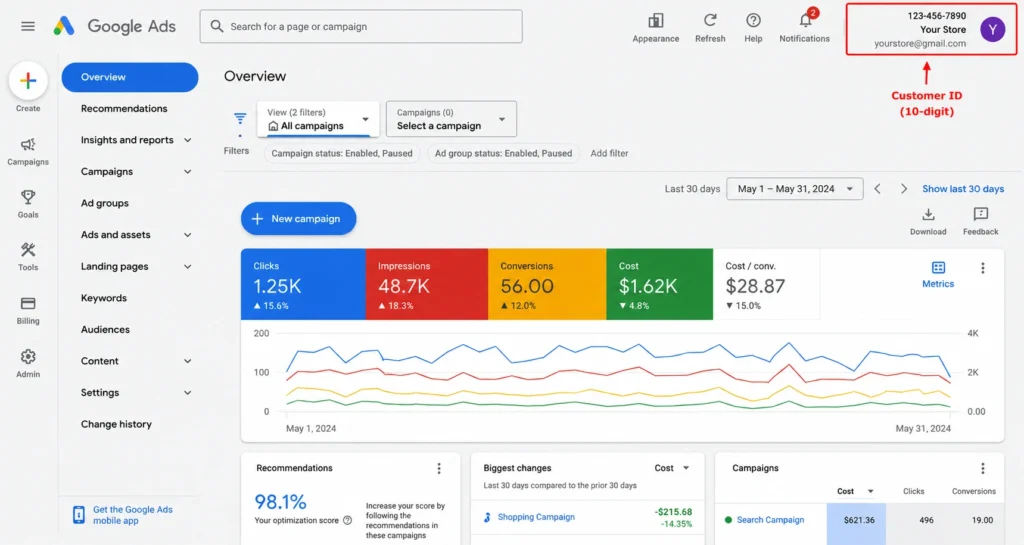
The most important piece of information you’ll need is your Google Ads Customer ID, which is a unique 10-digit number formatted like this:
123-456-7890
Merchant Center uses this ID to identify the correct advertising account. Entering even one incorrect digit sends the link request to another account or causes the request to fail entirely.
From experience, incorrect Customer IDs remain one of the most common reasons businesses believe Google “cannot find” their Ads account.
Where to Find Your Google Ads Customer ID
- Sign in to Google Ads.
- Look in the upper-right corner of the interface.
- Copy the 10-digit Customer ID.
- Paste it into Merchant Center exactly as displayed.
Expert Tip
If you’re an agency managing several Google Ads accounts through a Manager Account (MCC), make sure you’re using the client’s Customer ID, not your Manager Account ID. Merchant Center must link directly to the advertising account that will run Shopping campaigns.
Administrator Permissions
Having access to both accounts isn’t always enough.
Google requires sufficient permissions before a linking request can be sent or approved.
The permission requirements differ slightly depending on which side initiates the connection.
Merchant Center Permission Requirements
To send a linking request, you should have:
- Administrator access
- Account owner access
- Full account management privileges
Standard users often cannot initiate account linking.
Google Ads Permission Requirements
To approve the request, you typically need:
- Administrative access
- Standard access with linking permissions (depending on account configuration)
If the request remains pending indefinitely, permissions are usually the first thing worth checking.
Permission Matrix
| Task | Merchant Center | Google Ads |
| Send link request | Administrator | Not required |
| Accept request | Not required | Administrator |
| Remove linked account | Administrator | Administrator |
| Manage campaigns | Not required | Standard or Administrator |
| Edit feed | Administrator | Not required |
For agencies, it’s generally better to ask the client to grant Administrator access temporarily rather than sharing login credentials.
Warning
If different Google accounts own Merchant Center and Google Ads, ensure both users have Administrator permissions before attempting to connect the accounts. Ownership mismatches frequently cause pending requests and rejected approvals.
Website Verification and Claiming
Your website should already be verified and claimed inside Merchant Center before you connect Google Ads.
Although linking itself doesn’t verify your website, Google uses website ownership to establish trust across Merchant Center services.
If your domain hasn’t been verified:
- Products may remain pending.
- Product approvals may be delayed.
- Shopping campaigns cannot serve eligible inventory.
- Merchant Center Diagnostics will display website-related issues.
To verify your domain, Merchant Center supports several methods:
- HTML file upload
- HTML meta tag
- Google Tag Manager
- Google Analytics
- DNS record verification
Most Shopify and WooCommerce stores complete this during their initial Merchant Center setup.
If you’re unsure whether verification is complete:
- Open Merchant Center.
- Navigate to Business Information.
- Select Website.
- Confirm the website shows both Verified and Claimed.
Both statuses should appear before launching Shopping campaigns.
Approved Product Feed
Another common misconception is that products don’t need to be approved before linking.
Technically, Google allows accounts to be linked regardless of product status.
However, an empty or disapproved product feed means Google Ads won’t have eligible products to advertise.
Before linking, confirm that:
- Products have been uploaded.
- Feed processing has completed.
- Required attributes are present.
- Major feed errors have been resolved.
- Products are eligible for Shopping Ads.
Open Merchant Center → Products → Diagnostics and review:
- Approved products
- Pending products
- Disapproved products
- Missing attributes
- Policy violations
Businesses often spend hours troubleshooting Google Ads campaigns when the real issue is sitting inside Merchant Center Diagnostics.
Quick Product Status Guide
| Product Status | Can Be Used in Shopping Ads? |
| Approved | Yes |
| Pending Review | Not yet |
| Limited Performance | Depends on issue |
| Disapproved | No |
| Expired | No |
If only a small percentage of your catalog is approved, resolve feed issues before investing in advertising.
Merchant Center Next Requirements
Google has transitioned most businesses to Merchant Center Next, which simplifies many workflows but also changes where certain settings are located.
If you’ve previously used Merchant Center Classic, you’ll notice several interface differences.
For linking Google Ads accounts in Merchant Center Next:
- Navigation has been simplified.
- Settings are grouped differently.
- Linked Accounts now appears under Apps & Services in most accounts.
- Product management and business settings are more centralized.
Although the interface looks different, the underlying connection process remains the same.
Google Ads still requires authorization before it can access Merchant Center product data.
Before You Continue
Take a moment to verify these final checks:
☑ Merchant Center account is active
☑ Google Ads account is active
☑ Correct Customer ID is available
☑ Website is verified and claimed
☑ Products are processing successfully
☑ Administrator permissions exist in both accounts
☑ Merchant Center Next setup is complete
If every item above is complete, you’re ready to connect both platforms.
How to Link Google Merchant Center to Google Ads (Step-by-Step)
The actual linking process only takes a few minutes. Most delays happen because of incorrect permissions, wrong Customer IDs, or approval requests that haven’t been accepted inside Google Ads.
Follow the steps below in order to avoid these issues.
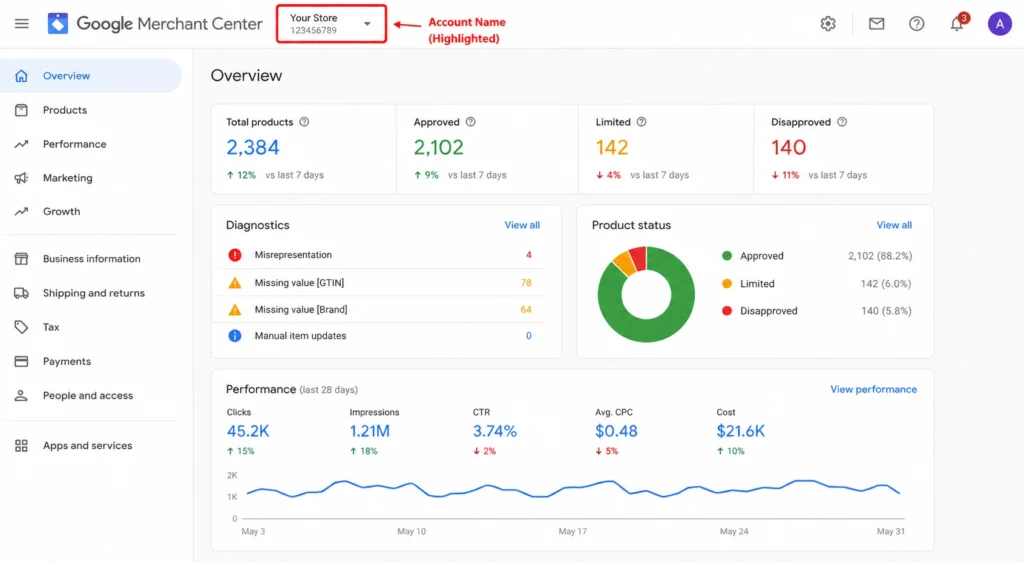
Step 1: Sign In to Google Merchant Center
Log in to your Merchant Center account using the Google account that has Administrator access.
If you manage multiple Merchant Center accounts, double-check that you’ve opened the correct one before proceeding.
Why This Matters
Sending a request from the wrong Merchant Center account can result in products being shared with the wrong advertising account, creating unnecessary confusion later.
Common Mistakes
- Using a standard user account instead of an administrator.
- Opening the wrong Merchant Center account.
- Attempting to link a suspended account.
Expert Tip
If you’re an agency, label Merchant Center accounts clearly with the client’s business name to avoid linking errors when managing multiple stores.
Step 2: Open Settings
From the left navigation menu, open Settings.
In Merchant Center Next, many account management features have moved compared to the Classic interface, so don’t expect identical menu names if you’re following older tutorials.
Inside Settings, you’ll find options related to:
- Business information
- Website settings
- Shipping
- Taxes
- Users
- Apps & Services
The linking option is located within this section.
Why This Matters
Google groups account-level integrations under Settings because they affect how Merchant Center communicates with other Google products rather than individual product feeds.
Common Mistakes
- Looking under Products instead of Settings.
- Following outdated Merchant Center Classic screenshots.
- Confusing Merchant Center with Google Ads settings.
Expert Tip
Google occasionally updates the interface without changing the underlying linking process. If menu names differ slightly, look for Apps & Services or Linked Accounts rather than relying solely on older documentation.
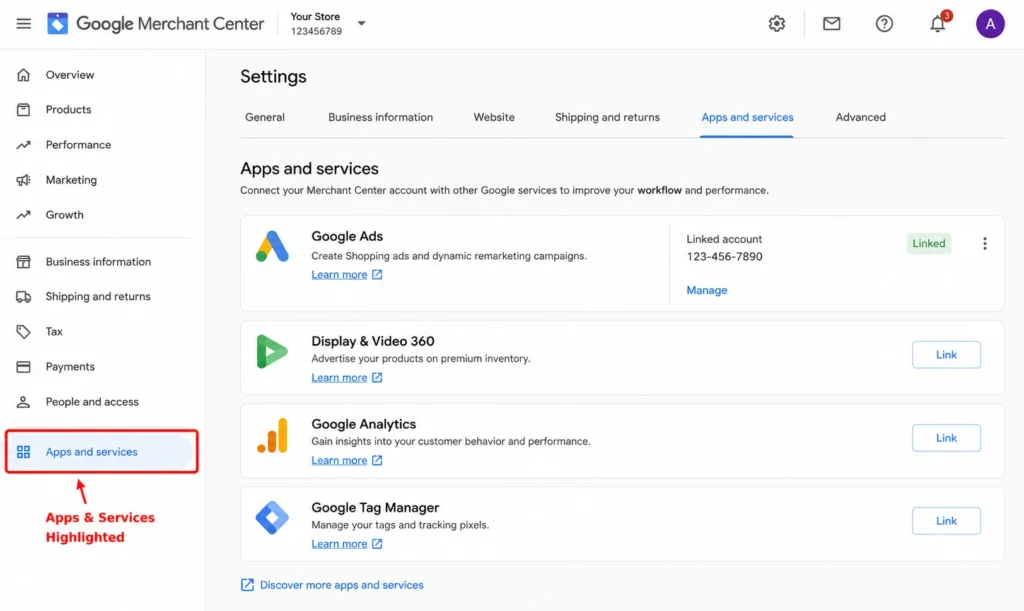
Step 3: Navigate to Apps & Services (Linked Accounts)
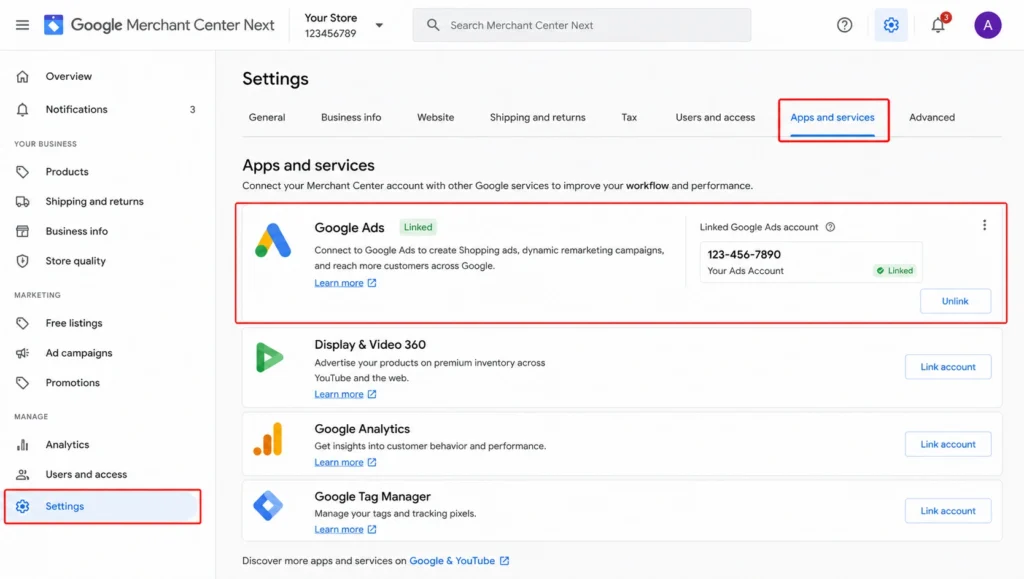
Inside Settings, open Apps & Services. In some Merchant Center Next accounts, this section may also appear as Linked Accounts depending on the interface version Google has rolled out.
This is where Merchant Center manages integrations with other Google products, including Google Ads.
You’ll see any existing connected accounts, pending requests, and the option to create a new connection.
What to Do
- Open Settings.
- Select Apps & Services.
- Locate the Google Ads section.
- Click Link Account or Add Google Ads Account.
If you’ve linked Google Ads before, you’ll also see the status of existing connections here.
Why This Matters
Merchant Center doesn’t automatically know which Google Ads account should advertise your products. This page establishes that relationship.
Without a linked account, Merchant Center can manage products, but Google Ads cannot use them in Shopping campaigns or retail Performance Max campaigns.
Common Mistakes
- Looking for linking options inside Google Ads first.
- Opening the wrong Merchant Center account.
- Assuming products automatically become available because both accounts use the same Google login.
- Expecting the connection to happen automatically after creating a Google Ads account.
Expert Tip
If you manage multiple ecommerce brands, review the existing linked accounts before adding another one. It’s surprisingly common to find old agency accounts that still have access months after a project has ended.
Step 4: Enter Your Google Ads Customer ID
Merchant Center now asks for the Google Ads Customer ID you want to connect.
This is the unique identifier for your advertising account.
Enter the 10-digit number exactly as it appears in Google Ads.
Example:
123-456-7890
Merchant Center validates this number and sends a linking request to that specific advertising account.
Why This Matters
Merchant Center doesn’t search by email address or business name.
It only identifies Google Ads accounts using the Customer ID.
Entering an incorrect Customer ID means:
- The request goes to another account.
- Google Ads cannot receive the request.
- Products won’t become available.
- Campaign setup is delayed.
In agency environments, this mistake happens more often than most people expect because teams frequently manage dozens or even hundreds of Google Ads accounts.
Common Mistakes
- Typing the wrong Customer ID.
- Using an MCC (Manager Account) ID instead of the client account.
- Copying an old advertising account.
- Accidentally removing digits.
Expert Tip
Always copy and paste the Customer ID directly from Google Ads instead of typing it manually. One incorrect digit is enough to prevent the accounts from connecting.
Where to Find the Customer ID
Inside Google Ads:
- Sign in.
- Look at the top-right corner.
- Copy the Customer ID.
- Return to Merchant Center.
- Paste the number.
Double-check the value before sending the request.
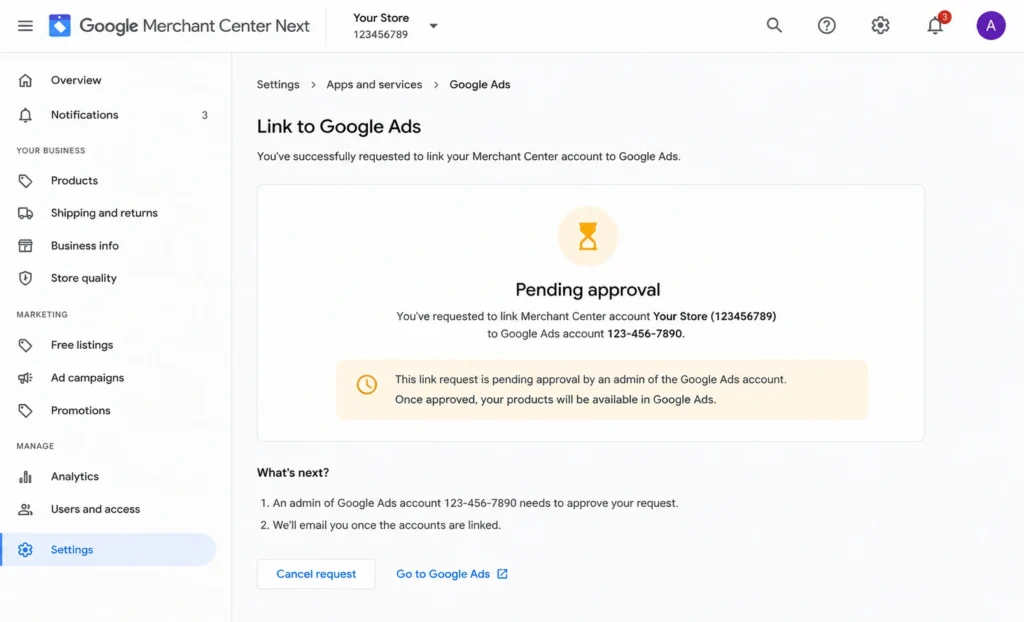
Step 5: Send the Link Request
Once the Customer ID has been entered correctly, click Send Request.
Merchant Center immediately creates a pending connection request.
At this stage, nothing is fully connected yet.
Google Ads must still approve the request before product sharing begins.
What Happens Behind the Scenes
Merchant Center records:
- Which Merchant Center account initiated the request.
- Which Google Ads account should receive it.
- Which Google account initiated the request.
- The pending approval status.
Google Ads then displays the request to an administrator.
Why This Matters
This approval process protects businesses from unauthorized advertising accounts accessing product inventories.
Without approval, anyone who knew a Customer ID could potentially request access to another company’s products.
Common Mistakes
- Assuming the accounts are linked immediately.
- Closing the process without notifying the Google Ads administrator.
- Forgetting to approve the request inside Google Ads.
Expert Tip
If another department manages Google Ads, let them know immediately after sending the request. Many businesses lose several days simply because nobody checks the pending approval notification.
Warning
A pending request does not mean the accounts are linked. Shopping campaigns will not see Merchant Center products until the request has been accepted.
Step 6: Accept the Request Inside Google Ads
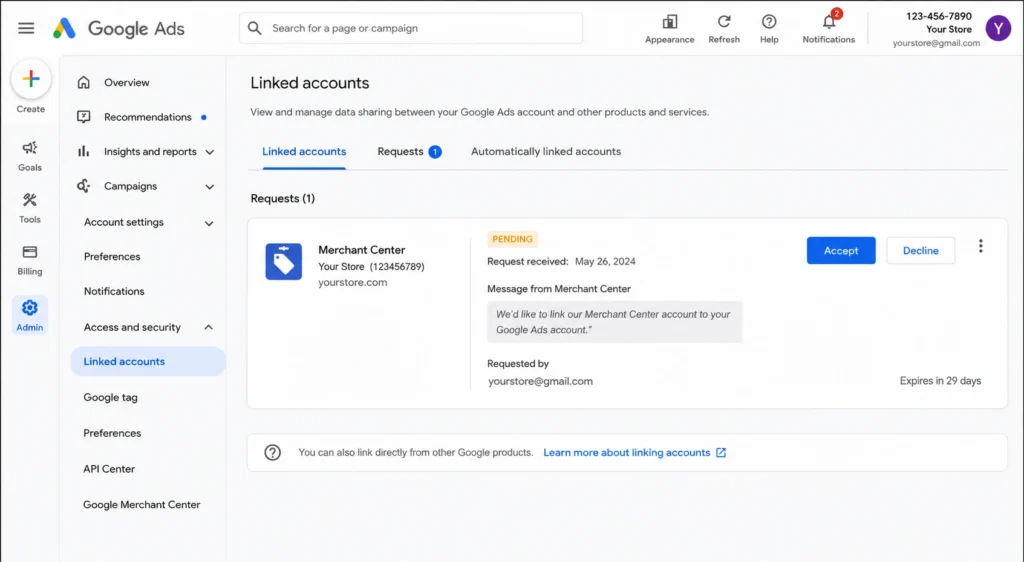
Now switch to Google Ads.
The account receiving the request must approve it.
What to Do
- Sign in to Google Ads.
- Open Tools or Admin (depending on the interface version).
- Navigate to Linked Accounts.
- Locate the pending Merchant Center request.
- Review the Merchant Center account.
- Click Accept.
After approval, both accounts begin communicating automatically.
Why This Matters
Google requires confirmation from both platforms before product sharing begins.
This prevents accidental or unauthorized access to Merchant Center inventories.
Common Mistakes
- Approving from the wrong Google Ads account.
- Using a user without Administrator access.
- Ignoring pending requests.
- Rejecting the request by mistake.
Expert Tip
If the request isn’t visible after several minutes, refresh Google Ads or sign out and back in. Although requests usually appear quickly, small delays occasionally occur while Google’s systems synchronize account information.
Step 7: Verify the Connection
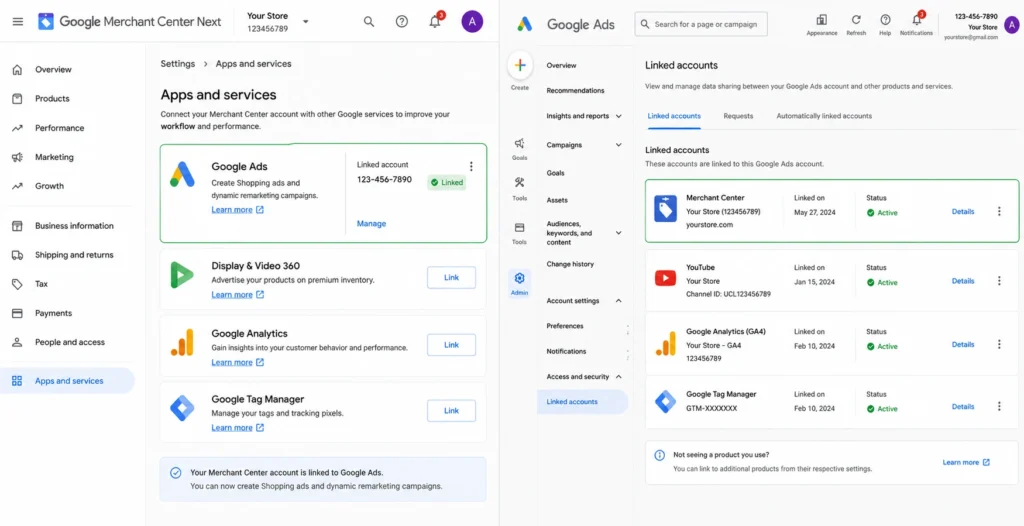
After the request has been accepted, return to Merchant Center.
The account status should now display Linked or Connected instead of Pending.
Google Ads should also show Merchant Center as an active linked account.
What to Verify
Inside Merchant Center:
- Google Ads account listed as connected.
- No pending approval status.
- Correct Customer ID displayed.
Inside Google Ads:
- Merchant Center appears under Linked Accounts.
- Shopping campaign creation is available.
- Product groups become selectable.
- Eligible products begin appearing.
Why This Matters
A successful connection confirms that Google Ads has permission to access your approved product inventory.
It does not confirm that every product is approved.
Always verify product eligibility separately inside Merchant Center Diagnostics.
Common Mistakes
- Checking only one platform.
- Forgetting to confirm the Customer ID.
- Assuming every product is eligible immediately.
Expert Tip
Before creating your first campaign, compare the number of approved products inside Merchant Center with the products available in Google Ads. If those numbers differ significantly, review Diagnostics before spending advertising budget.
Need Help With the Setup?
Linking Merchant Center to Google Ads is usually straightforward, but more complex situations, such as multiple stores, agency-managed accounts, Merchant Center suspensions, feed issues, or enterprise catalogs, often require additional configuration. If you want everything reviewed before launching Shopping Ads or Performance Max campaigns, our Google Merchant Center Services can help ensure your accounts, feeds, and permissions are configured correctly from the start.
How to Check if Your Accounts Are Successfully Linked
Receiving a confirmation message isn’t enough. Before creating campaigns, verify that the connection is working correctly from both Merchant Center and Google Ads.
A properly linked account should show:
- Active connection status
- Correct Google Ads Customer ID
- No pending approval requests
- Eligible products available for campaign selection
Checking these details now can prevent campaign setup problems later.
Verify Inside Merchant Center
In Merchant Center Next:
- Open Settings.
- Go to Apps & Services.
- Locate your Google Ads connection.
Confirm that:
- The status is Linked or Connected.
- The Customer ID matches your intended Google Ads account.
- No pending requests remain.
If the status still shows Pending, the request has not yet been accepted in Google Ads.
Verify Inside Google Ads
Next, confirm the connection from the Google Ads side.
Although Merchant Center may display a successful link, it’s good practice to verify that Google Ads recognizes the connection before building Shopping campaigns.
Steps
- Sign in to Google Ads.
- Open Admin (or Tools & Settings, depending on your interface).
- Navigate to Linked Accounts.
- Locate Google Merchant Center.
- Verify the linked Merchant Center account.
You should see:
- Connected Merchant Center account
- Active connection status
- No pending requests
- Correct Merchant Center account name
If you manage several Merchant Center accounts, double-check you’re connected to the correct one before launching campaigns.
Verify Product Availability
The final verification step is confirming that Google Ads can actually access your products.
Many advertisers stop after seeing a “Linked” status, only to discover later that no products are available when creating campaigns.
To check product availability:
- Start creating a new Shopping campaign or retail Performance Max campaign.
- Select the linked Merchant Center account.
- Review available products.
- Confirm product groups can be created.
If Google Ads detects approved inventory, your products should appear automatically.
If no products appear, investigate Merchant Center rather than Google Ads.
The issue is usually one of the following:
- Products still under review
- Feed processing not complete
- Product disapprovals
- Website verification issues
- Merchant Center suspension
- Destination settings not enabled
Product Synchronization Timeline
Businesses often ask how long it takes after linking before products become available.
The answer depends on your product status.
| Situation | Typical Result |
| Products already approved | Usually available within minutes to a few hours |
| Products still processing | Available after approval |
| Feed recently updated | Depends on feed processing time |
| Major feed errors | Products unavailable until resolved |
| Suspended Merchant Center | Products unavailable |
Google Ads cannot advertise products that Merchant Center considers ineligible.
Summary Box
A successful connection requires three things:
- Merchant Center shows the account as Linked
- Google Ads recognizes the Merchant Center account
- Approved products are available for campaign creation
Missing any one of these usually indicates an issue that needs investigation before launching ads.
How Linking Impacts Google Shopping Campaigns
Linking Merchant Center to Google Ads is more than an administrative task.
It fundamentally changes how Google can use your product data across its advertising ecosystem.
Once linked, Google Ads gains access to approved products, making them eligible for Shopping campaigns, retail Performance Max campaigns, and several other Google surfaces.
However, it’s important to understand what linking actually enables and what it does not.
Shopping Ads
Shopping Ads are the most direct benefit of linking both accounts.
Without Merchant Center, Google Ads has no product inventory.
Without Google Ads, Merchant Center has no advertising platform.
Once linked:
- Products become selectable.
- Product groups can be created.
- Bidding becomes available.
- Campaigns can target specific inventory.
- Reporting becomes product-based.
Google Ads retrieves product information directly from Merchant Center rather than requiring manual uploads.
Every time your Merchant Center feed updates, Shopping campaigns use the latest approved information.
Shopping Ads Workflow
Online Store
↓
Merchant Center Feed
↓
Product Review
↓
Approved Products
↓
Linked Google Ads
↓
Shopping Campaign
↓
Google Search Results
Performance Max Campaigns
Retail Performance Max campaigns rely heavily on Merchant Center.
When your accounts are linked:
- Approved inventory becomes available.
- Google’s AI selects products automatically.
- Creative combinations use Merchant Center data.
- Product availability updates dynamically.
- Inventory changes synchronize automatically.
Unlike traditional Shopping campaigns, Performance Max distributes products across multiple Google properties, including:
- Google Search
- Google Shopping
- YouTube
- Gmail
- Discover
- Display Network
- Maps (where eligible)
Merchant Center acts as the product source throughout this process.
Without a linked Merchant Center account, retail Performance Max campaigns cannot access your ecommerce inventory.
Free Listings
Linking Merchant Center also complements your visibility across Google’s free shopping experiences.
Approved products may appear in:
- Google Shopping
- Google Search
- Google Images
- Google Lens
- Other eligible Google surfaces
Although Free Listings don’t require Google Ads spending, maintaining a linked Google Ads account provides a smoother transition when you’re ready to begin paid advertising.
Many businesses begin with Free Listings before expanding into Shopping Ads and Performance Max.
For a deeper explanation of where products appear across Google, see our guide on How Google Shopping Works.
Product Synchronization
One of the biggest advantages of linking is automatic synchronization.
Google Ads doesn’t create a separate copy of your inventory.
Instead, it continuously references Merchant Center.
This means changes made inside Merchant Center flow through to campaigns automatically.
Examples include:
- Price changes
- Inventory updates
- New products
- Removed products
- Sale pricing
- Product titles
- Images
- Availability
For stores updating hundreds or thousands of products each day, this automation is essential.
Without it, advertisers would need to manually update product information inside Google Ads, which simply isn’t practical.
Reporting Improvements
Once products become available inside Google Ads, reporting becomes much more detailed.
Instead of only viewing campaign-level metrics, you can analyze performance at the product level.
Examples include:
- Top-selling products
- Best-performing brands
- Product category performance
- Custom label reporting
- Item ID reporting
- ROAS by product
- Clicks by inventory segment
These insights help identify:
- Products worth increasing bids on
- Poor-performing inventory
- Seasonal opportunities
- Feed optimization priorities
Shopping optimization becomes significantly easier when campaign data and Merchant Center inventory work together.
Expert Tip
High-performing Shopping campaigns almost always start with high-quality product data. Even sophisticated bidding strategies can’t compensate for weak titles, inaccurate pricing, missing GTINs, or poor-quality product images.
Linking Does Not Automatically Create Campaigns
This is another point that causes confusion.
Connecting Merchant Center and Google Ads does not create Shopping campaigns.
After linking, you still need to:
- Choose a campaign type.
- Configure bidding.
- Set budgets.
- Define targeting.
- Organize product groups.
- Launch the campaign.
Think of linking as unlocking access to your inventory.
Campaign creation is still a separate step.
If you’re ready to advertise, our guide on How to Set Up Google Shopping Campaign (2026) walks through campaign configuration, bidding strategies, audience signals, and launch best practices.
Common Problems When Linking Merchant Center to Google Ads
Although the linking process is straightforward, several issues appear repeatedly across businesses of all sizes.
In agency projects, these problems typically fall into a handful of categories.
Understanding the cause behind each one helps you resolve issues much faster.
Problem 1: Pending Link Request
Cause
The request has been sent from Merchant Center but hasn’t been approved inside Google Ads.
Diagnosis
Merchant Center displays:
Pending
Google Ads shows:
Request awaiting approval
Solution
Ask a Google Ads administrator to:
- Open Linked Accounts.
- Review the request.
- Accept the connection.
If several days have passed, verify that the request was sent to the correct Customer ID.
Problem 2: Invalid Customer ID
Cause
An incorrect Google Ads Customer ID was entered.
This remains one of the most common setup mistakes.
Diagnosis
Merchant Center cannot locate the Google Ads account or sends the request to the wrong account.
Solution
- Copy the Customer ID directly from Google Ads.
- Verify all digits.
- Resend the request if necessary.
Problem 3: Permission Denied
Cause
The user attempting to send or approve the linking request doesn’t have sufficient permissions.
This commonly happens when:
- An employee has standard access instead of Administrator access.
- An agency is managing campaigns but hasn’t been granted full permissions.
- Merchant Center and Google Ads are owned by different Google accounts.
Diagnosis
You may see messages such as:
- You don’t have permission to perform this action.
- Unable to send request.
- Access denied.
- Administrator permission required.
The request may also fail silently without creating a pending connection.
Solution
Review user permissions in both platforms.
Inside Merchant Center:
- Go to Settings → People and Access.
- Confirm the user has Administrator access.
Inside Google Ads:
- Go to Admin → Access and Security.
- Verify the user can approve linked accounts.
If necessary, ask the account owner to temporarily grant Administrator access until the setup is complete.
Problem 4: Ownership Mismatch
Cause
The Merchant Center account belongs to one business while the Google Ads account belongs to another.
This often occurs after:
- Business acquisitions
- Agency transitions
- Account migrations
- Staff changes
- Using personal Google accounts during setup
Diagnosis
The linking request appears correct but cannot be approved or doesn’t establish a valid connection.
You may also discover that:
- Merchant Center belongs to a former agency.
- Google Ads belongs to the business owner.
- Different Google accounts own each platform.
Solution
Review ownership before linking.
Confirm:
- Merchant Center owner
- Google Ads owner
- Website owner
- Business identity
If ownership is incorrect, transfer account ownership before launching Shopping campaigns.
Problem 5: Merchant Center Suspension
Cause
Merchant Center has been suspended because of policy violations.
Examples include:
- Misrepresentation
- Website issues
- Unsupported business practices
- Missing contact information
- Policy violations
- Invalid checkout experience
Diagnosis
Merchant Center displays an account suspension notice.
Products become unavailable regardless of whether Google Ads is linked.
Solution
Resolve the suspension first.
Although suspended Merchant Center accounts can sometimes remain linked to Google Ads, they cannot provide eligible products for Shopping Ads until the suspension has been lifted.
Problem 6: Product Disapprovals
Cause
Products fail Google’s review process.
Common reasons include:
- Missing GTINs
- Price mismatch
- Availability mismatch
- Policy violations
- Broken landing pages
- Missing shipping information
- Poor image quality
Diagnosis
Merchant Center Diagnostics reports:
- Disapproved products
- Limited performance
- Missing attributes
- Policy issues
Google Ads may show few or no eligible products during campaign creation.
Solution
Resolve feed issues inside Merchant Center rather than attempting to fix the problem in Google Ads.
Remember:
Google Ads can only advertise products that Merchant Center considers eligible.
Common Linking Issues at a Glance
| Problem | Most Likely Cause | Recommended Solution |
| Pending request | Request not approved | Accept request in Google Ads |
| Invalid Customer ID | Incorrect ID entered | Verify and resend request |
| Permission denied | Insufficient user access | Grant Administrator permissions |
| Ownership mismatch | Different account owners | Align account ownership |
| Merchant Center suspension | Policy enforcement | Resolve suspension first |
| No products available | Feed issues or disapprovals | Review Merchant Center Diagnostics |
Troubleshooting Linking Errors
If your accounts still aren’t communicating correctly after following the linking process, don’t immediately assume there’s a technical problem with Google Ads.
In practice, most linking issues originate inside Merchant Center.
Working through the following checks systematically will usually identify the underlying cause.
Review Merchant Center Diagnostics
Merchant Center Diagnostics should always be your first stop.
It provides detailed information about:
- Feed processing
- Product approvals
- Product disapprovals
- Website issues
- Policy violations
- Missing attributes
- Feed quality warnings
Navigate to:
Products → Diagnostics
Pay particular attention to:
- Account-level issues
- Feed-level issues
- Product-level issues
Even when accounts are linked correctly, Diagnostics may reveal why products aren’t available for advertising.
Confirm User Permissions
If someone else manages either platform, verify permissions again.
Questions to ask include:
- Does the Merchant Center user have Administrator access?
- Does the Google Ads user have Administrator access?
- Was the request approved by the correct account?
- Has access recently changed?
Permission changes are surprisingly common after staffing changes or agency transitions.
Verify Website Ownership
Merchant Center requires a verified and claimed website.
Check:
- Correct domain
- Active verification
- Claimed ownership
- Matching landing pages
If your ecommerce platform recently changed domains, remember to update Merchant Center before launching campaigns.
Check Policy Violations
Some account-level policy violations affect all products.
Examples include:
- Misrepresentation
- Unsupported checkout
- Missing refund policies
- Inaccurate business information
Until these issues are resolved, linking Merchant Center to Google Ads won’t restore Shopping eligibility.
Always resolve account-level policy issues before troubleshooting campaigns.
Inspect Product Feed Quality
Even technically approved products can underperform if the feed is weak.
Review:
- Product titles
- Descriptions
- Images
- GTINs
- Brand information
- Product categories
- Shipping settings
- Availability
- Pricing consistency
A high-quality feed improves both eligibility and campaign performance.
Troubleshooting Workflow
Link Not Working?
│
▼
Is Merchant Center Linked?
│
No ─────► Complete Linking
│
Yes
│
▼
Products Approved?
│
No ─────► Fix Diagnostics
│
Yes
│
▼
Permissions Correct?
│
No ─────► Update Access
│
Yes
│
▼
Website Verified?
│
No ─────► Verify & Claim Domain
│
Yes
│
▼
Launch Shopping Campaign
Expert Tip
When troubleshooting Shopping campaigns, always start with Merchant Center and work forward to Google Ads, not the other way around. Feed quality, policy compliance, and product eligibility determine whether Google Ads has inventory to advertise.
When Professional Merchant Center Support Makes Sense
Basic account linking is usually straightforward. However, businesses often encounter more complex situations that require a deeper understanding of Google’s ecommerce ecosystem.
Professional assistance can be valuable when you’re dealing with:
- Merchant Center suspensions
- Large product catalogs
- Multiple ecommerce stores
- International Shopping campaigns
- Complex feed optimization
- Agency-managed accounts
- Multi-client Merchant Center (MCA) setups
- Performance Max launch strategies
Rather than spending days diagnosing account relationships, permissions, or feed issues, an experienced specialist can review the entire setup and identify problems before they impact advertising performance.
Our Google Merchant Center Services include account setup, Google Ads integration, feed optimization, diagnostics resolution, suspension recovery, and ongoing account management for businesses that want a reliable Shopping infrastructure before scaling paid campaigns.
Best Practices After Linking Your Accounts
Linking Google Merchant Center to Google Ads is only the foundation. The real performance improvements come from what you do next.
Businesses that consistently generate profitable Shopping campaigns don’t simply connect their accounts and launch ads. They establish processes to maintain accurate product data, monitor account health, and continually optimize their campaigns.
The following best practices help ensure your linked accounts continue performing as your product catalog and advertising strategy evolve.
Enable Conversion Tracking
Before spending money on Shopping Ads or Performance Max campaigns, configure conversion tracking.
Without conversion tracking, Google Ads can measure clicks but cannot accurately determine which products generate sales.
A typical ecommerce conversion setup includes:
- Purchases
- Add to Cart
- Begin Checkout
- Newsletter Signups (optional)
- Phone Calls (if applicable)
- Lead Form Submissions (for lead-generation businesses)
For most ecommerce stores, purchase conversions are the primary optimization signal.
Google’s automated bidding strategies—including Maximize Conversion Value and Target ROAS—depend heavily on accurate conversion data.
Why It Matters
Without conversion tracking:
- ROAS cannot be measured accurately.
- Smart Bidding has limited optimization signals.
- Product performance reporting becomes incomplete.
- Budget allocation decisions become guesswork.
Expert Tip
If you’re migrating from Universal Analytics or rebuilding your ecommerce tracking, verify that purchase values, currency, and transaction IDs are being recorded correctly before increasing your advertising budget.
Launch Retail Performance Max Campaigns Carefully
Many businesses now choose Retail Performance Max as their primary Shopping campaign type.
Because these campaigns rely on Merchant Center inventory, linking your accounts correctly is only the first step.
Before launching:
- Confirm products are approved.
- Verify conversion tracking.
- Check feed quality.
- Upload high-quality business assets.
- Review audience signals.
- Ensure product categories are organized.
Although Google’s automation handles bidding and placements, it still depends on accurate Merchant Center data.
Poor product feeds produce poor campaign inputs.
Strong product feeds give Google’s machine learning better information to work with.
Continuously Optimize Your Product Feed
Your product feed should never be considered “finished.”
Successful advertisers review and improve it regularly.
Areas worth optimizing include:
Product Titles
Use descriptive, keyword-rich titles that clearly identify the product.
Example:
Instead of:
Running Shoes
Use:
Men’s Lightweight Trail Running Shoes Size 10 Waterproof
Clear titles improve relevance for Shopping searches.
Product Descriptions
Descriptions should explain:
- Main features
- Materials
- Benefits
- Compatibility
- Important specifications
Avoid keyword stuffing.
Write naturally for customers first.
Product Images
Use:
- High-resolution images
- Clean white backgrounds where appropriate
- Multiple product angles
- Lifestyle images when permitted
- Accurate product representation
Poor images often reduce click-through rates even when products rank well.
Product Categories
Choose Google’s most appropriate product category.
Avoid selecting overly broad categories simply because they appear popular.
Accurate categorization helps Google understand your inventory.
GTIN Accuracy
Whenever available, include valid:
- GTIN
- MPN
- Brand
These identifiers improve product matching across Google’s Shopping ecosystem.
Monitor Merchant Center Diagnostics Weekly
Merchant Center Diagnostics is not something you should only check during setup.
Feed issues can appear at any time.
For example:
- Products go out of stock.
- Prices change.
- Landing pages break.
- Shipping settings change.
- Policy updates introduce new warnings.
Checking Diagnostics weekly helps identify problems before they affect campaign performance.
Recommended routine:
- Review account issues.
- Review feed issues.
- Review product issues.
- Resolve warnings promptly.
- Prioritize disapprovals.
Maintain User Permissions
As businesses grow, user access often becomes outdated.
Former employees, previous agencies, and contractors sometimes retain Administrator access long after they stop working with the account.
Every few months:
- Review Merchant Center users.
- Review Google Ads users.
- Remove unnecessary access.
- Confirm business owners retain administrative control.
This improves both security and account governance.
Keep Merchant Center Updated
Merchant Center should reflect your current business at all times.
Regularly review:
- Business address
- Contact details
- Shipping policies
- Return policies
- Website URLs
- Tax settings
- Store information
Outdated business information can lead to policy issues and reduce customer trust.
Post-Link Optimization Checklist
Use this checklist after successfully connecting your accounts.
Account Configuration
☐ Merchant Center linked successfully
☐ Google Ads linked successfully
☐ Customer ID verified
☐ Products approved
☐ Website verified
☐ Conversion tracking configured
Product Feed
☐ Titles optimized
☐ Images reviewed
☐ Descriptions improved
☐ GTINs complete
☐ Categories assigned
☐ Shipping accurate
Campaign Readiness
☐ Shopping campaign created
☐ Performance Max configured
☐ Budget assigned
☐ Bidding strategy selected
☐ Product groups reviewed
☐ Merchant Center Diagnostics clear
Should You Link Multiple Google Ads Accounts?
One question that frequently comes up is whether a Merchant Center account should be linked to more than one Google Ads account.
The answer depends on how your business is structured.
Google allows multiple account relationships, but they should be planned carefully to avoid confusion, duplicate management, or accidental campaign overlap.
Scenario 1: Single Business
For most ecommerce businesses, the recommended setup is straightforward.
Store
│
Merchant Center
│
One Google Ads Account
This keeps:
- Reporting centralized
- Product management simple
- Permissions easier to control
Unless there’s a specific operational reason, one Merchant Center linked to one Google Ads account is usually the cleanest architecture.
Scenario 2: Marketing Agencies
Agencies often manage advertising for many clients.
Instead of using one Google Ads account for every business, agencies typically work through a Google Ads Manager Account (MCC) while each client maintains their own Google Ads account.
The recommended structure looks like this:
Client Merchant Center
│
Client Google Ads
│
Agency MCC
This approach gives the agency management access without transferring ownership of the client’s advertising account.
It also makes future agency transitions much easier.
Scenario 3: Multi-Brand Businesses
Some organizations operate several independent brands.
Example:
- Brand A
- Brand B
- Brand C
Each brand may have:
- Separate website
- Separate inventory
- Separate advertising budget
In these situations, many businesses choose either:
- Individual Merchant Center accounts for each brand
or
- A Multi-Client Account (MCA) if central management is required.
The right structure depends on operational complexity and reporting needs.
Scenario 4: Enterprise Ecommerce
Large retailers often manage:
- Multiple countries
- Multiple currencies
- Several websites
- Regional product feeds
- Large marketing teams
Their architecture usually includes:
- Multi-Client Merchant Center
- Multiple Google Ads accounts
- Shared product feeds
- Centralized feed management
These implementations require careful planning around permissions, ownership, feed segmentation, and campaign structure.
Recommended Account Architecture
| Business Type | Recommended Structure |
| Small ecommerce business | One Merchant Center → One Google Ads account |
| Growing retailer | One Merchant Center with multiple campaign types |
| Marketing agency | Client Merchant Center → Client Ads → Agency MCC |
| Multi-brand company | Separate Merchant Centers or MCA |
| Enterprise retailer | MCA with structured account hierarchy |
Expert Tip
Avoid creating multiple Google Ads accounts simply because different team members manage campaigns. It’s usually better to manage permissions within a single account unless there’s a genuine business need for separate advertising accounts.
Merchant Center Next vs Merchant Center Classic: What’s Changed?
Google has gradually migrated most businesses from Merchant Center Classic to Merchant Center Next. While the purpose of the platform remains the same, the interface, navigation, and account management experience have changed significantly.
If you’re following an older tutorial, don’t be surprised if menu names or locations don’t match what you see today.
Fortunately, the process of linking Google Merchant Center to Google Ads still follows the same core principles.
Interface Differences
Merchant Center Next introduces a cleaner interface with simplified navigation.
Some features that were previously spread across several menus have been consolidated into fewer sections.
For example:
| Merchant Center Classic | Merchant Center Next |
| Linked Accounts | Apps & Services |
| Business Information | Business Details |
| Feeds | Products |
| Diagnostics | Product Diagnostics |
| Growth | Marketing Opportunities |
Google continues to update Merchant Center Next, so minor interface changes may occur over time. When following any tutorial, focus on the functionality rather than exact menu names.
Updated Linking Workflow
The overall account-linking process remains familiar:
- Open Merchant Center Next.
- Go to Settings.
- Select Apps & Services.
- Add your Google Ads Customer ID.
- Send the request.
- Accept it inside Google Ads.
- Verify the connection.
Although the navigation has changed, the approval process and permission requirements remain the same.
Migration Considerations
If your business was automatically migrated from Merchant Center Classic:
- Existing Google Ads links are generally preserved.
- Product feeds continue functioning.
- Campaigns usually continue without interruption.
- Product approvals remain unchanged.
However, it’s still worth reviewing your linked accounts after migration to ensure everything transferred correctly.
Pay particular attention to:
- Linked Google Ads accounts
- Website ownership
- Shipping settings
- Product diagnostics
- User permissions
Real-World Examples
The linking process is the same for every business, but the implementation decisions often differ depending on the ecommerce platform and account structure.
Here are a few common scenarios.
Example 1: Shopify Store
A clothing retailer using Shopify has:
- One online store
- One Merchant Center account
- One Google Ads account
After installing the Google & YouTube app, products automatically sync to Merchant Center.
The next step is linking the Merchant Center account to Google Ads using the correct Customer ID.
Once approved:
- Products become eligible for Shopping Ads.
- Retail Performance Max campaigns can be created.
- Inventory updates automatically whenever products change in Shopify.
Example 2: WooCommerce Store
A WooCommerce business uses a product feed plugin to send inventory to Merchant Center.
After reviewing Diagnostics and confirming product approvals, the owner links Merchant Center to Google Ads.
Before launching campaigns, they:
- Verify conversion tracking.
- Optimize product titles.
- Review shipping settings.
- Check approved product counts.
This preparation helps avoid common Shopping campaign issues.
Example 3: Marketing Agency
An agency manages advertising for several ecommerce clients.
Rather than owning client accounts, the agency requests Administrator access to:
- Merchant Center
- Google Ads
The agency links each Merchant Center to its corresponding client Google Ads account while managing campaigns through an MCC.
This structure ensures clients retain ownership while allowing the agency to manage campaigns efficiently.
Example 4: Enterprise Retailer
A national retailer operates:
- Multiple brands
- Multiple countries
- Several product feeds
- Regional advertising teams
They use:
- Multi-Client Merchant Center
- Multiple Google Ads accounts
- Feed rules
- Supplemental feeds
- Regional campaign structures
Because of the complexity, permissions and account architecture are planned before any linking begins.
Checklist Before Launching Shopping Ads
Before creating your first Shopping or retail Performance Max campaign, verify the following:
Merchant Center
☐ Website verified and claimed
☐ Products approved
☐ Feed processing successfully
☐ Diagnostics reviewed
☐ Shipping configured
☐ Tax settings completed (where applicable)
Google Ads
☐ Merchant Center linked
☐ Conversion tracking configured
☐ Billing active
☐ Campaign objective selected
☐ Bidding strategy chosen
☐ Audience signals prepared (Performance Max)
Product Feed
☐ Titles optimized
☐ Images high quality
☐ Pricing accurate
☐ Availability matches website
☐ GTINs added where required
☐ Product categories assigned
Campaign Readiness
☐ Product groups available
☐ Budget confirmed
☐ Geographic targeting reviewed
☐ Merchant Center account selected
☐ Final campaign review completed
Completing this checklist before launch reduces the chances of spending budget on campaigns that are limited by feed issues or incomplete setup.
When to Get Professional Merchant Center Help
Many businesses can link Merchant Center and Google Ads without assistance.
However, some situations benefit from experienced support.
Consider professional help if you’re dealing with:
- Merchant Center suspensions
- Complex account ownership issues
- Multiple ecommerce stores
- Multi-country product feeds
- Large product catalogs
- Persistent feed errors
- Performance Max implementation
- Ongoing product disapprovals
- Agency transitions
- Enterprise account structures
An experienced Merchant Center specialist can review your account setup, identify hidden issues, and recommend improvements before they affect campaign performance.
If you’re planning to scale Google Shopping, need help recovering a suspended account, or want ongoing feed optimization, our Google Merchant Center Services provide setup, account audits, diagnostics fixes, feed management, and long-term optimization tailored to your business.
For a broader understanding of Merchant Center, product feeds, diagnostics, approvals, and optimization strategies, continue with our Google Merchant Center (2026): Complete Guide to Setup, Optimization & Suspension Recovery.
Key Takeaways
Linking Google Merchant Center to Google Ads is a required step for businesses that want to advertise products through Google Shopping and retail Performance Max campaigns.
While the linking process itself only takes a few minutes, successful implementation depends on much more than simply connecting two accounts.
Before launching campaigns, make sure:
- Merchant Center is fully configured.
- Your website is verified and claimed.
- Products are approved.
- Feed quality is strong.
- Administrator permissions are correct.
- The correct Google Ads Customer ID is used.
- Conversion tracking is configured.
- Merchant Center Diagnostics is reviewed regularly.
Remember that linking your accounts does not:
- Approve products
- Create Shopping campaigns automatically
- Fix feed errors
- Resolve policy violations
- Improve campaign performance on its own
Instead, it gives Google Ads permission to access your approved product inventory. Everything that follows—campaign structure, bidding, feed optimization, and ongoing maintenance—determines how successful your Shopping strategy becomes.
Businesses that treat Merchant Center as an actively managed platform rather than a one-time setup typically achieve better campaign stability and stronger long-term results.
Linking Checklist
Use this quick reference before launching your campaigns:
- ✅ Merchant Center account active
- ✅ Google Ads account active
- ✅ Correct Customer ID entered
- ✅ Accounts successfully linked
- ✅ Website verified and claimed
- ✅ Product feed uploaded
- ✅ Products approved
- ✅ Merchant Center Diagnostics reviewed
- ✅ Conversion tracking enabled
- ✅ Shopping or Performance Max campaign configured
Frequently Asked Questions (FAQ)
1. Do I need to link Google Merchant Center to Google Ads?
Yes. Linking is required if you want to use your Merchant Center products in Shopping Ads or retail Performance Max campaigns. Without the connection, Google Ads cannot access your approved product inventory.
2. Is linking Google Merchant Center to Google Ads free?
Yes. Google does not charge for linking the accounts. Costs only begin when you run paid advertising campaigns and receive eligible ad interactions.
3. Can I use Google Merchant Center without Google Ads?
Yes. Merchant Center supports Free Listings, product management, diagnostics, and feed management without requiring an active Google Ads account.
4. Does linking automatically create Shopping campaigns?
No. Linking only gives Google Ads access to your approved products. You must still create and configure Shopping or Performance Max campaigns manually.
5. Why is my linking request still pending?
A pending request usually means it hasn’t been accepted inside Google Ads. An administrator must approve the request before the connection becomes active.
6. Can I link multiple Google Ads accounts to one Merchant Center account?
Yes. Google supports multiple account relationships, but they should be planned carefully to avoid reporting confusion and campaign overlap.
7. Can agencies link client Merchant Center accounts?
Yes. Agencies commonly manage client accounts by obtaining Administrator access and linking the client’s Merchant Center to the client’s Google Ads account while managing campaigns through an MCC.
8. What happens if I enter the wrong Google Ads Customer ID?
The request may fail or be sent to the wrong advertising account. Always copy the Customer ID directly from Google Ads to avoid mistakes.
9. Can a suspended Merchant Center account be linked to Google Ads?
In many cases, yes, but suspended accounts cannot provide eligible products for Shopping campaigns until the suspension is resolved.
10. When should I hire a Merchant Center specialist?
Consider professional support if you’re dealing with account suspensions, complex permissions, multiple stores, feed optimization, large product catalogs, or persistent diagnostics issues. These situations often require more than a standard account-linking setup.

Mandeep Wraich
Digital Marketing Specialist and Content Strategist focused on data-driven growth, SEO, and performance-led content. At AIPulseInsights.com, articles explore how AI, analytics, and emerging digital trends influence marketing strategies, brand visibility, and business decision-making. With a strong foundation in content analysis, paid media, and strategic storytelling, the work shared on this platform converts complex industry shifts into practical insights that support marketers and businesses in achieving consistent, measurable growth. The goal is to simplify innovation and empower readers to stay ahead in a rapidly changing digital landscape.